Choose a barcode format, prepare spreadsheet batches and diagnose printing or identifier problems before using labels in your store.
Which barcode should I use for SKUs: Code128, EAN-13 or UPC-A?
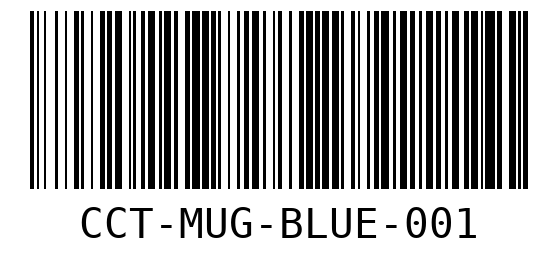
For an internal SKU such as CCT-MUG-BLUE-001, start with Code128: the tested script preserves that combination of letters, digits and hyphens. If a retail partner requires a GTIN, use the assigned product number and the barcode format they accept; EAN-13 and UPC-A serve a different identification workflow from an internal SKU.
Keep a mapping between the encoded value and the product variant in your inventory system. A readable image alone does not make the scanner retrieve the correct item. Generate one sample, decode it and scan it into the software that staff actually use before preparing the full catalog.
GS1: EAN and UPC
Can I generate barcodes in bulk from Excel or a CSV file?
Yes, with a separate helper around the supplied single-image script. The original command does not provide an Excel importer, batch queue or ZIP export. In our merchant case, the assistant added a helper, generated three SKU images, packaged them and independently decoded every archived image.
Prepare a sheet with one SKU per row and store identifier columns as text so leading zeros survive export. Ask the assistant to report blank rows, duplicates and invalid identifiers, generate separate filenames, and include a CSV mapping each input to its output. Test a small sample first; this case does not establish a maximum batch size or production throughput.
Does generating a UPC or EAN image register a retail product number?
No. Barcode Generator renders an identifier; it does not allocate a GS1 number or register your business or product with a retailer. If the product already has an assigned identifier, use that exact value. If it needs a new identifier, resolve that requirement with the relevant GS1 organization or selling channel before making the image.
For a store's own pick-and-pack labels, an internal SKU may be enough. For retail distribution, first confirm the partner's identifier, label and variant requirements. Do not replace an existing product identifier merely because a newly generated barcode looks correct.
GS1: GTIN and barcode identification
Why does a barcode PNG decode on screen but fail after printing?
Separate an encoding problem from a printing problem. First decode the saved PNG and compare it with the SKU. If that matches, check whether printing changed the image proportions, clipped the blank margins or made the bars too narrow for the printer. Also inspect contrast, smudging, folds and the scanner's enabled formats.
The reviewed script does not expose a label-paper layout or a 400×100 sizing control. Use label software or an explicitly added helper for that work, and print a small sample at the intended physical size. Our test confirms digital decoding; it does not certify a printer, stock material or scanner combination.
GS1: barcode printing guidelines
Why can the generated EAN or Code39 value differ from my input?
The underlying library applies format-specific rules. In our tests, EAN could recalculate the final check digit, while Code39 could append a checksum. A successful command therefore does not prove that the encoded identifier is the exact identifier you intended to use.
Compare three values: the approved product number, the submitted text and the independently decoded image. If they differ, stop that item's export and identify whether the source number, selected format or checksum setting is responsible. Keep the expected value in the output report. Do not silently overwrite the product master with the library's corrected value.
Can this Skill export SVG, PDF sheets or printer-ready label files?
The reviewed script saves PNG images through its ImageWriter path. It does not include a native SVG switch, PDF sheet builder or printer-language exporter. If you need any of those formats, ask for a separate conversion or label-layout step and keep that added work distinguishable from the original Skill.
Choose the output from the printing workflow backwards: specify the label stock, physical dimensions, printer resolution, text placement and number of copies. Check that the resulting layout preserves readable bars and margins. For routine warehouse printing, putting the generated identifier into your existing label software is often simpler than building a print system around this script.

No reviews yet.